Quick Summary
- Who this guide is for: Filipino citizens, OFWs, and foreigners seeking PhilHealth membership or updates.
- Important Notes: Always prepare valid IDs and correct forms before proceeding.
- Estimated Time: 22 minutes for reading and preparation.
How to Pay PhilHealth Using GCash: Complete Step-by-Step Guide for 2026
What Is GCash?
GCash is a Philippine mobile wallet and digital payment platform operated by Mynt, a subsidiary of Globe Telecom. With over 80 million registered users, GCash allows Filipinos to send money, pay bills, buy load, shop online, and invest — all from a smartphone app. The platform’s “Bills Payment” feature includes a wide range of government agencies, making it one of the most convenient ways to settle obligations like PhilHealth contributions without visiting a physical payment center or bank. A fully verified GCash account unlocks higher transaction limits and access to all features, including government bill payments. GCash is regulated by the Bangko Sentral ng Pilipinas, ensuring that your digital transactions are protected under Philippine financial laws.
Can You Pay PhilHealth Using GCash?
Yes, you can pay PhilHealth using GCash. PhilHealth is listed as a biller in the GCash app under the “Government” category of the Bills Payment section. This payment channel is officially recognized, and payments made through GCash are transmitted to PhilHealth for posting to your contribution record. The service is available to all PhilHealth member types who pay their own contributions — voluntary members, self-employed individuals, and OFWs. Employed members whose contributions are handled by their employer generally do not need to use this method, though they can make voluntary payments to fill contribution gaps if needed. As with any digital payment service, biller availability can change based on PhilHealth’s partnerships and system updates. Always check the GCash app to confirm PhilHealth is currently listed before attempting payment.
Who Can Use GCash for PhilHealth Payments?
The pay PhilHealth using GCash option is designed for members who personally manage their own contributions. This includes self-employed individuals such as freelancers, sole proprietors, and gig workers; voluntary members who continue coverage after leaving employment or who are not formally employed; and Overseas Filipino Workers who pay annual contributions — provided their GCash account is verified for international use. Employed members typically have contributions deducted and remitted by their employer and do not need to pay through GCash. However, if an employed member discovers missing contributions and needs to fill a gap to maintain active status, they can make a voluntary payment through GCash. Kasambahay employers can also use GCash to remit contributions for their household workers. The key requirement is a fully verified GCash account with sufficient balance to cover the contribution amount plus any applicable convenience fee.
Quick Payment Checklist Before You Start
- ☐ Is your GCash account fully verified? Unverified accounts have limited transaction capabilities.
- ☐ Do you have sufficient balance to cover the contribution amount and any convenience fee?
- ☐ Do you know your 12-digit PhilHealth PIN? This is required to complete the payment.
- ☐ Have you checked the PhilHealth Contribution Table for the correct amount to pay?
- ☐ Do you know the coverage period you are paying for?
- ☐ Is your GCash app updated to the latest version?
Requirements Before Paying PhilHealth Through GCash
Before you attempt to pay PhilHealth using GCash, ensure you meet these prerequisites. First, your GCash account must be fully verified. You can verify your account through the GCash app by submitting a valid government ID and completing the identity verification process. Unverified accounts have lower transaction limits and may not be able to process government bill payments. Second, you need a stable internet connection — mobile data or WiFi — to prevent transaction interruptions. Third, your GCash wallet must have sufficient funds. You can cash in through linked bank accounts, over-the-counter partners, or online banking. Fourth, have your PhilHealth Identification Number ready — you cannot complete the payment without it. Fifth, know the exact amount you need to pay based on your membership category and the official PhilHealth Contribution Table. Paying an incorrect amount may result in underpayment and inactive status.
Information You Need Before Making a GCash PhilHealth Payment
- Your 12-digit PhilHealth PIN: This identifies your account for payment posting.
- Your full name: As registered with PhilHealth — match it exactly.
- The contribution amount: Based on your declared income and the current premium rate.
- The coverage period: Which month, quarter, or year you are paying for.
- Your membership category: Voluntary, self-employed, or OFW — this affects the amount.
How to Pay PhilHealth Using GCash (Step-by-Step)
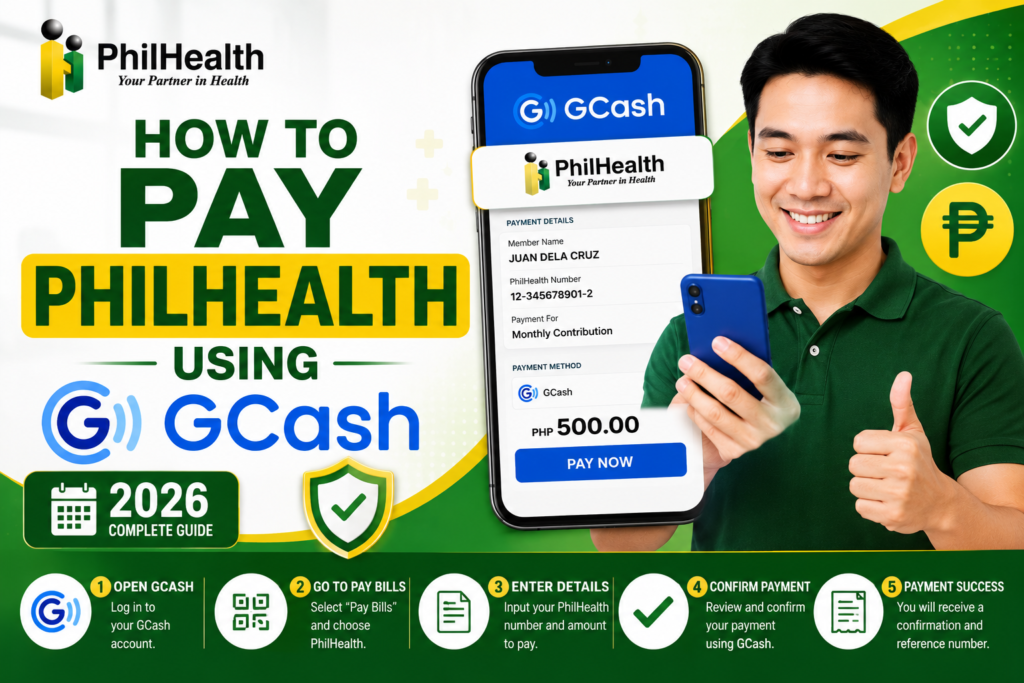
Step 1: Log Into Your Verified GCash Account
Open the GCash app on your smartphone and enter your MPIN to log in. Ensure you are using the latest version of the app. Your account dashboard displays your available balance at the top of the screen.
Step 2: Navigate to the Bills Payment Section
On the GCash dashboard, tap “Bills” or “Pay Bills.” You will see categories of billers. Scroll through and select “Government” as the biller category.
Step 3: Select PhilHealth as the Biller
In the list of government billers, find and select “PhilHealth” or “PhilHealth Contribution.” Verify that you are selecting the correct and official PhilHealth biller. If PhilHealth is not listed, it may be temporarily unavailable — check back later or use an alternative payment method.
Step 4: Enter Your Payment Details
Fill in the required fields carefully. Enter your 12-digit PhilHealth PIN — double-check for accuracy. Input the amount you are paying based on the PhilHealth Contribution Table. Provide your full name as registered with PhilHealth. Specify the coverage period — for example, “January-March 2026” for quarterly payment or “2026 Annual” for annual payment. Some versions of the GCash form may also ask for your membership type.
Step 5: Review and Confirm Payment
Carefully review all details on the confirmation screen. Verify the PhilHealth PIN, amount, and coverage period are correct. Check if a convenience fee is being added by GCash — this will be clearly displayed. If everything is correct, tap “Confirm” or “Pay.” You may be asked to enter your MPIN again for security.
Step 6: Save Your Payment Receipt
Once the payment is successful, GCash displays a transaction confirmation screen with a reference number. Take a screenshot immediately. GCash also sends an email and SMS confirmation to your registered contact details. Save these confirmations until the payment appears in your PhilHealth contribution history. The receipt is your proof of payment in case of any posting issues.
How to Verify a Successful GCash PhilHealth Payment
After completing your pay PhilHealth using GCash transaction, verify it was successful in three ways. First, check your GCash transaction history — tap “Transactions” on the dashboard and look for the PhilHealth payment entry with the amount and reference number. Second, check your registered email for a payment confirmation from GCash. Third, check your SMS inbox for a text confirmation. A successful transaction means GCash has processed your payment and forwarded it to PhilHealth. However, successful GCash processing is not the same as PhilHealth posting — the contribution still needs to be recorded in PhilHealth’s database, which can take additional time. Never discard your payment receipt until you have confirmed the contribution appears in your PhilHealth contribution history.
How Long GCash PhilHealth Payment Posting May Take
| Payment Method | Typical Posting Time | Maximum Expected Time |
|---|---|---|
| GCash Bills Payment | 24-48 hours | 3 working days |
| GCash on Weekends/Holidays | Next working day onwards | 3-5 working days |
Payments made through GCash on weekends or holidays may take slightly longer to post, as PhilHealth’s processing systems typically operate on business days. Always factor in this timeline when paying close to a planned medical procedure or deadline.
How to Download or Save Your GCash PhilHealth Payment Receipt
Your GCash transaction receipt is critical evidence of payment. To save it, take a screenshot of the confirmation screen immediately after the transaction succeeds. The screenshot should capture the transaction reference number, the amount paid, the biller name, and the date and time. GCash also sends an email confirmation — open the email, download the attached receipt if available, or save the email itself in a dedicated folder. The SMS confirmation can be screenshotted as well. For extra security, save these proofs in multiple places: your phone’s photo gallery, a cloud storage folder, and email them to yourself. Do not delete these records until you have verified the contribution is posted in your PhilHealth contribution history. Having multiple copies of your receipt ensures that even if you lose your phone, you can still prove payment.
How to Check If Your GCash Contribution Has Been Posted to PhilHealth
After allowing sufficient posting time, log in to the PhilHealth Member Portal using your PIN and password. Navigate to “Contribution History” or “Payment History.” Look for the payment you made — it should show the date, the amount, and the coverage period. If the payment appears, your contribution is successfully posted. You can also download your Member Data Record (MDR), which includes a summary of recent contributions. If the payment does not appear after 3 working days, follow the troubleshooting steps in the section below. For more on verifying payments, see our check PhilHealth contributions guide.
Common GCash PhilHealth Payment Errors and Solutions
| Error | Likely Cause | Solution |
|---|---|---|
| “Biller Not Found” | PhilHealth temporarily unavailable on GCash | Wait and try again; use alternative payment method |
| “Transaction Failed” | Poor internet connection or server timeout | Check connection, restart app, try again |
| “Insufficient Balance” | Wallet balance lower than payment amount plus fee | Cash in to your GCash wallet before retrying |
| “Invalid Account Number” | Incorrect PhilHealth PIN entered | Double-check your 12-digit PIN and re-enter |
| Payment Deducted but No Confirmation | App crash or connection loss during processing | Check transaction history; contact GCash support |
Failed GCash PhilHealth Payment Troubleshooting Guide
Step 1: Check Your Internet Connection
Switch between mobile data and WiFi. A weak connection can cause transaction timeouts.
Step 2: Verify Your GCash Balance
Ensure you have enough funds for both the contribution amount and any applicable convenience fee.
Step 3: Restart the GCash App
Close the app completely and reopen it. This clears temporary glitches.
Step 4: Update the GCash App
Go to the Google Play Store or Apple App Store and install any pending GCash updates.
Step 5: Try at a Different Time
Peak hours can cause server congestion. Try early morning or late evening.
Step 6: Contact GCash Support
If problems persist, submit a ticket through the GCash app’s Help Center or call the GCash hotline.
What to Do If Your GCash Payment Is Deducted but Not Posted to PhilHealth
This situation is stressful but resolvable. Do not make a second payment immediately — this can result in double payment complications. First, confirm the deduction by checking your GCash transaction history. Take a screenshot showing the transaction reference number, amount, date, and biller. Second, contact GCash customer support through the app or hotline. Ask them to verify the transaction status and confirm whether the payment was successfully transmitted to PhilHealth. Third, if GCash confirms successful transmission, wait 24-48 hours and check your PhilHealth contribution history again. Fourth, if the payment still does not appear, contact PhilHealth support or visit a PhilHealth branch with your GCash transaction receipt. PhilHealth can trace the payment using the reference number. Fifth, as a last resort, you can file a formal dispute. This process highlights why saving your receipt is essential.
Security Tips When Paying PhilHealth Online Through GCash
- Only use the official GCash app downloaded from the Google Play Store or Apple App Store. Fake GCash apps exist and can steal your credentials.
- Never share your MPIN with anyone, even someone claiming to be GCash support. GCash will never ask for your MPIN.
- Verify the biller name is “PhilHealth” before confirming payment. Scammers sometimes create similarly named fake billers.
- Use a secure internet connection. Avoid public WiFi when making financial transactions.
- Enable biometric login (fingerprint or face recognition) for an extra layer of security on your GCash app.
- Log out or lock your phone after completing the transaction if others have access to your device.
Advantages of Paying PhilHealth Through GCash
- Convenience: Pay anytime, anywhere — no travel, no lines, no office hours constraints.
- Instant receipt: Get immediate transaction confirmation with a reference number.
- Trackable: Digital transaction history makes it easy to retrieve past payment records.
- No cash handling: Reduces the risk of lost payments or carrying large amounts of cash.
- Available 24/7: Unlike over-the-counter payments limited to business hours, GCash works around the clock.
- Integration: GCash payment details can be directly matched against your PhilHealth contribution history for easy reconciliation.
Alternative PhilHealth Payment Methods Beyond GCash
| Payment Method | Best For | Posting Time |
|---|---|---|
| PhilHealth Member Portal Online Payment | All direct-paying members | 24-48 hours |
| Maya (PayMaya) | Digital wallet users | 24-48 hours |
| Accredited Banks (Over-the-Counter/Online) | Traditional banking users | 3-7 working days |
| Bayad Center / SM Bills Payment | Cash payers without digital wallets | 3-7 working days |
| PhilHealth Branch Over-the-Counter | Complex cases, immediate receipt needs | Same day |
GCash vs Other PhilHealth Payment Methods
| Feature | GCash | Over-the-Counter | Bank Online |
|---|---|---|---|
| Availability | 24/7 | Business hours only | 24/7 (online banking) |
| Convenience Fee | Minimal (varies) | Usually none | Usually none |
| Posting Speed | 24-48 hours | 3-7 working days | 3-5 working days |
| Receipt | Digital (instant) | Physical receipt | Digital confirmation |
Expert Tips for Paying PhilHealth Contributions via GCash
- Pay a few days before your coverage deadline to allow for posting time. Do not wait until the last day of the month.
- Keep a dedicated album on your phone for PhilHealth payment receipts — screenshots organized by date make retrieval easy.
- Set a quarterly calendar reminder to pay your contributions and check posting status.
- Verify your PhilHealth PIN before each payment — a single wrong digit sends your payment to someone else’s record.
- Check the GCash app before payment day to confirm PhilHealth is still listed as an available biller.
- If paying for multiple quarters, consider making separate payments for each quarter to create distinct transaction records that are easier to track and reconcile.
Common Mistakes When Paying PhilHealth Using GCash
- Entering the wrong PhilHealth PIN: Your payment gets applied to another member’s account or rejected.
- Paying the wrong amount: Underpayment results in insufficient contribution records.
- Not saving the receipt: If posting fails, you have no proof of payment.
- Paying twice after a failed attempt: Always verify the first transaction before making a second payment.
- Using an unverified GCash account: Unverified accounts may not support government bill payments.
- Not checking posting status: Assuming payment means coverage without verifying PhilHealth has recorded it.
Frequently Asked Questions About Paying PhilHealth Using GCash
Can I pay PhilHealth using GCash without a verified account?
No. A fully verified GCash account is required to access the Bills Payment feature and to have sufficient transaction limits for government contributions. Unverified accounts are restricted to basic transactions and may not be able to process PhilHealth payments. Verify your account through the GCash app using a valid government ID.
Is there a maximum amount I can pay to PhilHealth through GCash?
GCash imposes transaction limits based on your account verification level. Fully verified accounts typically have higher limits that accommodate annual or multi-quarter PhilHealth payments. Check your specific wallet limit in the GCash app under “Wallet Limits.” If your contribution exceeds your transaction limit, you may need to split payments or use an alternative payment channel.
Can OFWs pay PhilHealth through GCash from abroad?
GCash is accessible internationally for fully verified accounts. OFWs can pay PhilHealth using GCash from abroad provided they have a stable internet connection, their GCash account is verified for international use, and they have sufficient balance from international cash-in methods. Check GCash’s current list of supported countries and international services.
What reference number should I use when following up on a GCash PhilHealth payment?
Use the GCash transaction reference number displayed on your payment confirmation screen. This number uniquely identifies your payment and allows both GCash and PhilHealth to trace the transaction. Provide this reference number when contacting GCash support or PhilHealth about a posting issue.
Can I pay for multiple coverage periods in one GCash transaction?
You can pay a larger amount intended to cover multiple quarters or a full year. However, specify the coverage period clearly in the payment details. Some members prefer making separate transactions for each quarter to create distinct records that are easier to reconcile with PhilHealth’s posting. Either approach works as long as the total amount matches the required contributions.
Key Takeaways
- You can pay PhilHealth using GCash through the Bills Payment section under the Government category with a fully verified GCash account.
- Always double-check your PhilHealth PIN, payment amount, and coverage period before confirming the transaction.
- Save your GCash transaction receipt — screenshot, email confirmation, and SMS — until the contribution appears in your PhilHealth contribution history.
- GCash payments typically post to PhilHealth within 24 to 48 hours. Allow up to 3 working days before following up.
- If payment is deducted but not posted, contact GCash support first, then PhilHealth with your transaction reference number.
- Payment channels, biller availability, and fees may change. Always verify through the official PhilHealth website at www.philhealth.gov.ph and the official GCash app.
Image Recommendations for This Article
- Filename: pay-philhealth-using-gcash-step-by-step-screens.jpg
ALT: Series of GCash app screens showing the step-by-step process of paying PhilHealth contributions.
Title: GCash PhilHealth Payment Steps
Caption: The complete step-by-step process for paying PhilHealth contributions through the GCash app. - Filename: gcash-bills-payment-philhealth-biller-selection.jpg
ALT: GCash Bills Payment screen showing PhilHealth selected from the government billers list.
Title: Selecting PhilHealth Biller in GCash
Caption: Choose PhilHealth from the Government category in GCash Bills Payment. - Filename: gcash-philhealth-payment-confirmation-receipt.jpg
ALT: GCash transaction confirmation screen for PhilHealth payment showing reference number and amount.
Title: GCash PhilHealth Payment Receipt
Caption: Save a screenshot of this confirmation screen as your proof of payment. - Filename: philhealth-contribution-history-posted-gcash-payment.jpg
ALT: PhilHealth Member Portal contribution history showing a GCash payment successfully posted.
Title: Posted GCash Payment in PhilHealth
Caption: Verify your GCash payment appears in your PhilHealth contribution history after posting.
Disclaimer
philhealth-portal.ph is an independent informational website and is not affiliated with the Philippine Health Insurance Corporation (PhilHealth), GCash, or the Philippine Government. Payment methods, supported channels, biller availability, convenience fees, and procedures may change over time. This guide provides general information based on publicly available resources. Always verify current payment options through the official PhilHealth website at www.philhealth.gov.ph and the official GCash app.
Need More Help?
Explore our comprehensive PhilHealth Online Registration Guide for step-by-step instructions.
View Registration Guide →