Quick Summary
- Who this guide is for: Filipino citizens, OFWs, and foreigners seeking PhilHealth membership or updates.
- Important Notes: Always prepare valid IDs and correct forms before proceeding.
- Estimated Time: 20 minutes for reading and preparation.
PhilHealth Online Registration Guide 2026: Complete Step-by-Step for New Members
What Is PhilHealth Online Registration?
PhilHealth online registration is the official digital enrollment process that allows Filipino citizens to join the National Health Insurance Program through the internet. Instead of visiting a PhilHealth branch in person, you complete the PhilHealth Member Registration Form (PMRF) digitally, upload scanned copies of your required documents, and submit everything through the PhilHealth website. Once processed, you receive your unique 12-digit PhilHealth Identification Number (PIN) via email. This PIN is your permanent membership identifier — it stays with you for life. Online registration is part of PhilHealth’s digital transformation under Republic Act No. 11223, the Universal Health Care Act, which mandates that every Filipino be covered by the National Health Insurance Program.
Who Should Register for PhilHealth Online?
- First-time applicants who have never been PhilHealth members.
- Fresh graduates entering the workforce who need a PhilHealth Number for employment.
- Freelancers and self-employed individuals starting their own coverage.
- OFWs who need to register while abroad.
- Homemakers and voluntary members wanting health insurance.
- Students aged 21 and above transitioning from dependent status.
Benefits of Registering Online vs Visiting a Branch
| Feature | Online Registration | Branch Registration |
|---|---|---|
| Convenience | 24/7 from anywhere | Business hours; requires travel |
| Processing Time | Hours to 3 working days | Often same day |
| Document Format | Scanned digital copies | Original documents + photocopies |
Who Is Eligible for PhilHealth Online Registration?
- Filipino citizens of any age.
- Qualified resident aliens with valid permits.
- All membership categories — employed, self-employed, voluntary, OFW, sponsored.
- Individuals with valid government-issued ID and an active email address.
Who Cannot Use Online Registration?
- Already registered members — if you already have a PhilHealth PIN, do not register again. Use the PIN recovery process instead.
- Individuals without any valid ID — a government ID is mandatory for identity verification.
- Those with complex cases — such as members needing to merge duplicate records, which requires branch intervention.
Requirements Before Registering Online
- A valid government-issued ID — clear, unexpired.
- An active email address that you check regularly.
- An active mobile number for notifications.
- Scanned copies of your ID and supporting documents in PDF or JPG format.
- A stable internet connection and a device — computer, tablet, or smartphone.
Documents You Should Prepare Before Starting
| Membership Category | Required Documents |
|---|---|
| Employed | Valid ID, employment details or Certificate of Employment |
| Self-Employed / Voluntary | Valid ID, proof of income (business permit, DTI, ITR, or affidavit) |
| OFW | Passport, OEC or employment contract, additional valid ID |
| Senior Citizen | Senior Citizen ID or OSCA ID, valid government ID |
Valid Government IDs Accepted for Online Registration
- Philippine National ID (PhilSys)
- UMID, Passport, Driver’s License
- PRC ID, SSS ID, GSIS eCard
- Senior Citizen ID, OWWA ID
- Voter’s ID or Voter’s Certification
Email and Mobile Number Requirements
Your email address is the most critical piece of contact information for online registration. It is where PhilHealth sends your verification link, your new PhilHealth Number, and important account notifications. Use a personal email — not a work email you might lose when changing jobs. Gmail, Yahoo, and similar free services work well. Your mobile number is used for SMS notifications and may be used for identity verification. Ensure both are active and accessible throughout the registration process.
Internet and Device Requirements
You can complete PhilHealth online registration using a computer, laptop, tablet, or smartphone. A device with a larger screen (laptop or desktop) is recommended for filling out the detailed PMRF form, but smartphones work if you are comfortable with mobile browsing. A stable internet connection is essential — interruptions during submission can cause incomplete transmissions. Use WiFi if possible, or ensure strong mobile data signal.
Quick Registration Checklist Before You Start
- ☐ Valid government ID (scanned or clear photo)
- ☐ Supporting documents based on membership category
- ☐ Active personal email address
- ☐ Active mobile number
- ☐ Stable internet connection
- ☐ Device with browser (Chrome or Edge recommended)
Step-by-Step PhilHealth Online Registration Process
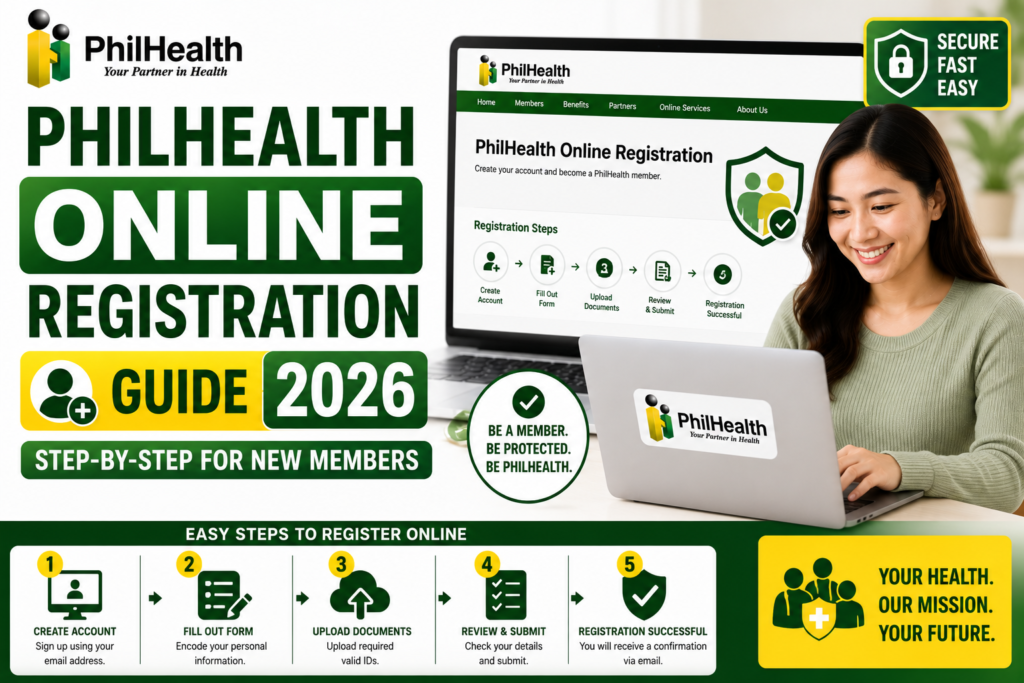
Step 1: Visit the Official PhilHealth Website
Open your browser and go to www.philhealth.gov.ph. Verify the URL and look for the padlock icon. Click “Online Services” or “Member Portal.” Never access registration through links from emails or text messages — always type the URL directly.
Step 2: Select New Member Registration
On the portal page, choose “Register” or “Create New Account” — not “Login” which is for existing members. The system will present you with the digital PMRF form.
Step 3: Complete the Digital PMRF
Fill out all required fields: full name (must match your ID exactly), date of birth, place of birth, sex, civil status, contact details, and residential address. Select your membership category — employed, self-employed, voluntary, OFW, or sponsored. If declaring dependents, fill in their details in the appropriate section. For detailed PMRF guidance, see our PMRF guide.
Step 4: Upload Your Documents
Attach clear scanned copies or photos of your valid ID and supporting documents. Ensure files are in PDF or JPG format and within the size limit. Blurry or unreadable uploads are the top reason for processing delays.
Step 5: Review and Submit
Carefully review every field before clicking submit. A single typo in your name or birthdate can cause verification issues. Once satisfied, click “Submit.” Note any transaction reference number displayed on the confirmation screen.
Step 6: Check Your Email for Verification
Open your email inbox and look for a message from PhilHealth. Click the verification link to confirm your email address. If you do not see it within five minutes, check your spam, junk, or promotions folder. This step is critical — your registration is incomplete until you verify.
Step 7: Wait for Your PhilHealth Number
Once verified and processed, PhilHealth sends your new 12-digit PIN to your email. Processing typically takes hours to 3 working days. This PIN is yours for life.
Creating a Member Portal Account During Registration
Some registration flows combine member registration with Member Portal account creation. You may be asked to create a password during the process. Choose a strong password — at least 8 characters with uppercase, lowercase, numbers, and a special character. This password, together with your PIN, becomes your login credential for accessing the Member Portal, downloading your MDR, checking contributions, and managing your membership online.
Filling Out Registration Details Correctly
- Name: Must match your valid ID exactly — same spelling, same order, same punctuation.
- Date of Birth: Use the format specified on the form. Double-check the year.
- Civil Status: Select accurately — this affects dependent declarations.
- Membership Category: Choose the one that fits your current situation.
Verifying Your Identity Online
PhilHealth verifies your identity through the documents you upload. Your ID must clearly show your photograph, full name, and must not be expired. The name on your registration form is cross-referenced against the ID. Supporting documents — like proof of income or employment — further validate your membership category selection.
Reviewing Your Information Before Submission
Before clicking submit, pause and review every field. Check your name spelling, birthdate, membership category, email address, and uploaded files. A mistake caught now takes seconds to fix. A mistake caught after submission can take days or require a branch visit. Download or screenshot your completed form for your personal records before submitting.
Completing Registration and Next Steps
After submission and email verification, your registration is in PhilHealth’s processing queue. You do not need to do anything else except wait for your PIN to arrive via email. Do not submit a second registration — duplicates cause serious problems that require branch visits to resolve.
Receiving Your PhilHealth Number
Your PhilHealth Identification Number arrives via email after processing. Save this email. Copy the PIN to a secure location — a password manager, a notes app, or a physical notebook. Share it with a trusted family member. This 12-digit number is your permanent health insurance identifier.
Downloading Your First Member Data Record
Once you have your PIN, log into the Member Portal, navigate to the Member Data Record section, and download your MDR as a PDF. This document confirms your active membership. Save it to your device and print a copy. For a new member, your contribution history may be blank initially — this is normal and fills in as you or your employer begin remitting contributions.
Updating Your Information After Registration
If you need to correct something after registration — a misspelled name, a wrong address — submit an update using the PMRF marked “For Updating.” For guidance, see our PhilHealth update information guide.
How to Activate Your PhilHealth Membership
Your membership becomes active when contributions start being posted to your record. For employed members, this happens when your employer remits your first contribution. For voluntary and self-employed members, this happens when you make your first premium payment. For guidance on paying, see our voluntary contribution guide or GCash payment guide.
Contribution Requirements After Registration
After registration, you must maintain regular contributions. The amount depends on your membership category and declared income, computed using the current premium rate. Refer to the PhilHealth Contribution Table for exact rates. You need at least three months of contributions within six months before any benefit claim. For employed members, your employer handles deductions. For voluntary members, you manage your own payments.
What to Do After Getting Your PhilHealth Number
- Save your PIN securely — multiple locations.
- Log into the Member Portal and download your MDR.
- Register for the Konsulta Program to access free primary care.
- If employed, provide your PIN to your HR department.
- If voluntary or self-employed, begin paying contributions.
- Add qualified dependents to extend coverage to your family.
How to Access the Member Portal After Registration
Visit the official PhilHealth website, click “Member Portal,” and enter your PIN and the password you created during registration. The portal is your permanent access point for downloading your MDR, checking contributions, generating an SPA, and managing your membership. Access it regularly — at least quarterly.
Common PhilHealth Online Registration Errors
| Error | Likely Cause | Solution |
|---|---|---|
| “Email Already Exists” | You previously registered an account | Use Forgot Password; recover existing account |
| “Record Already Exists” | You already have a PhilHealth PIN | Retrieve your existing PIN; do not re-register |
| Document Upload Failed | File too large or wrong format | Compress file; use PDF or JPG |
| Name Mismatch | Form name differs from ID | Match your form name exactly to your ID |
Troubleshooting Account Creation Problems
If the portal does not load, clear your browser cache or try incognito mode. If pages are blank, try a different browser — Chrome and Edge work best. If you receive server errors, try during off-peak hours (early morning or late evening). If your session expires while filling out the form, type long responses in a separate document first, then paste them in to avoid timeout.
Duplicate Registration Issues
If you accidentally register twice, you create two PhilHealth records — a problem that must be resolved at a PhilHealth branch through a membership merge. Duplicate records cause claim denials and contribution posting errors. Never register online if you are unsure whether you already have a PIN. Use the PIN recovery process to check first.
Email Verification Problems
If the verification email does not arrive, check all email folders — spam, junk, promotions, social. Add PhilHealth’s official domain to your contacts. If still missing, use the “Resend Verification” option on the login page. If your email provider blocks PhilHealth emails, try using a different email address — Gmail generally works reliably.
Invalid Information Errors
If the system rejects your information, the most likely cause is a name mismatch between your form and your ID. Even minor differences — “Maria” vs “Ma.” — can cause rejection. Correct your form to match your ID exactly. If your birthdate is rejected, verify the format matches what the system expects.
Security Tips to Avoid Fake PhilHealth Registration Websites
- Always type the PhilHealth URL directly — never click links from emails or text messages.
- Verify the padlock icon and “https://” in the address bar.
- PhilHealth registration is FREE — anyone charging a fee is running a scam.
- PhilHealth will never call or text asking for your password or PIN.
- Do not share your registration details with anyone offering to “assist” for a fee.
Expert Tips for First-Time PhilHealth Registrants
- Use a laptop or desktop for your first registration — the PMRF is long and easier to complete on a larger screen.
- Have your ID beside you while filling out the form — copy your name character by character.
- Do not refresh the page while uploading documents — it almost always fails.
- Save your PIN in multiple places immediately after receiving it.
- Complete the entire process in one sitting to avoid session timeouts.
Registration Reference Comparison Tables
What to Do After Registration — By Membership Type
| Membership Type | Immediate Next Steps |
|---|---|
| Employed | Provide PIN to HR; verify contributions monthly |
| Self-Employed / Voluntary | Pay first contribution; register for Konsulta |
| OFW | Pay annual contribution; send MDR to family in PH |
| Sponsored / Senior | Download MDR; verify active status; register for Konsulta |
Frequently Asked Questions About PhilHealth Online Registration
Is PhilHealth online registration available 24/7?
Yes. The online registration portal is accessible 24 hours a day, 7 days a week. However, system maintenance occasionally occurs, usually during late-night hours on weekends. If the portal is unavailable, try again after a few hours.
Can I register for PhilHealth online using my mobile phone?
Yes. The PhilHealth website is mobile-responsive. You can complete the entire registration process using a smartphone browser. However, filling out the lengthy PMRF is easier on a larger screen. If using a phone, rotate to landscape mode for wider form fields.
What if I do not receive my PhilHealth Number after registration?
Check your email inbox thoroughly including spam and junk folders. Processing typically takes hours to 3 working days. If your PIN has not arrived after this period, contact PhilHealth support through their official channels with your registration reference number if you received one.
Can I register my family members online at the same time?
Each adult member must register separately with their own email address. You cannot register multiple people in one session. Children are added as dependents under a principal member’s record, not registered independently.
Do I need to print anything during online registration?
No printing is required during registration. You can save confirmation screens as screenshots or PDFs. After receiving your PIN, you may want to print your MDR for hospital use, but a digital copy on your phone is often accepted.
Key Takeaways
- PhilHealth online registration allows first-time members to enroll through the official website without visiting a branch.
- Prepare your valid government ID, supporting documents, and active email before starting.
- Your name must match your ID exactly — this is the most common error that causes delays.
- After registration, download your MDR, register for Konsulta, and begin contributions to activate coverage.
- Registration procedures and requirements may change. Always verify through the official PhilHealth website at www.philhealth.gov.ph.
Image Recommendations for This Article
- Filename: philhealth-online-registration-portal-homepage.jpg
ALT: Official PhilHealth website homepage with Member Portal and Online Registration buttons highlighted.
Title: PhilHealth Online Registration Portal
Caption: Start your registration at the official PhilHealth website — never through third-party links. - Filename: philhealth-digital-pmrf-form-filling.jpg
ALT: Screenshot of the digital PhilHealth Member Registration Form being filled out with sample data.
Title: Completing the Digital PMRF
Caption: Fill out the digital PMRF with accurate personal information matching your valid ID. - Filename: philhealth-email-verification-inbox.jpg
ALT: Email inbox showing the PhilHealth verification email with activation link.
Title: Email Verification
Caption: Click the verification link in your email to activate your PhilHealth registration. - Filename: philhealth-pin-arrival-email-confirmation.jpg
ALT: Email from PhilHealth containing the new 12-digit PhilHealth Identification Number.
Title: Receiving Your PhilHealth Number
Caption: Your permanent PhilHealth PIN arrives via email after successful processing.
Disclaimer
philhealth-portal.ph is an independent informational website and is not affiliated with the Philippine Health Insurance Corporation (PhilHealth) or the Philippine Government. Registration procedures, online services, eligibility requirements, and membership policies may change over time. Always verify important information through official PhilHealth resources at www.philhealth.gov.ph.
Need More Help?
Explore our comprehensive PhilHealth Online Registration Guide for step-by-step instructions.
View Registration Guide →