Quick Summary
- Who this guide is for: Filipino citizens, OFWs, and foreigners seeking PhilHealth membership or updates.
- Important Notes: Always prepare valid IDs and correct forms before proceeding.
- Estimated Time: 20 minutes for reading and preparation.
PhilHealth SPA Guide 2026: How to Generate a Statement of Premium Account Online
What Is a PhilHealth Statement of Premium Account?
The PhilHealth Statement of Premium Account is an official billing document generated through the PhilHealth online portal. It specifies the exact premium amount a member or employer must pay for a selected coverage period. Think of the PhilHealth SPA as your PhilHealth bill — it tells you exactly how much you owe, for which months, based on your membership category and declared income. The SPA is not a payment receipt; it is a billing reference that you present when making a payment or use to guide your online payment transaction. Once you pay, the SPA information helps PhilHealth correctly apply your payment to the intended coverage period. For voluntary members, self-employed individuals, and OFWs, the SPA is an essential tool that eliminates guesswork from contribution payments.
What Information Does an SPA Contain?
- Member’s full name as registered with PhilHealth.
- 12-digit PhilHealth PIN — your unique membership identifier.
- Membership category — voluntary, self-employed, OFW, or employed.
- Declared monthly income — the basis for contribution computation.
- Applicable premium rate — the current percentage used to calculate your contribution.
- Coverage period — the specific months or quarter the payment will cover.
- Total amount due — the exact peso amount you need to pay.
- SPA reference number — a unique identifier for this specific billing statement.
- Generation date — when the SPA was created.
Why Is a PhilHealth SPA Important?
The PhilHealth SPA serves several critical functions. It ensures payment accuracy — you pay the exact amount PhilHealth expects, avoiding underpayment or overpayment. It provides an official reference number that links your payment to a specific coverage period, making tracking and posting more reliable. It serves as documentation — if a payment dispute arises, your SPA shows what you were billed and what you paid. Some payment channels require an SPA reference number to process PhilHealth contributions. For employers, the SPA aggregates all employee contributions into one billing document, simplifying batch remittance. In short, the SPA transforms contribution payment from an estimate into a precise, documented transaction.
Who Needs a PhilHealth SPA?
- Voluntary members paying their own quarterly, semi-annual, or annual contributions.
- Self-employed individuals managing their own PhilHealth payments.
- Overseas Filipino Workers paying annual contributions from abroad or during visits.
- Employers computing and remitting contributions for their entire workforce.
- Kasambahay employers paying contributions for household workers.
Employed members whose contributions are deducted and remitted by their employer generally do not need to generate an SPA themselves — their employer handles this.
Employer SPA vs Member SPA
| Feature | Individual Member SPA | Employer SPA |
|---|---|---|
| Covers | One member only | All employees under the employer |
| Generated Through | Member Portal | Employer Portal or EPRS |
| Payment Responsibility | Member pays full amount | Employer remits total for all employees |
SPA vs Official Receipt: What’s the Difference?
The PhilHealth SPA is a billing statement — it shows what you need to pay before you pay it. The Official Receipt is proof of payment — it confirms you have already paid. You generate an SPA before payment; you receive an official receipt after payment. Some members confuse these two documents. Always keep both: the SPA as a record of what you were billed, and the receipt as proof that you settled the amount.
SPA vs Contribution History
Your PhilHealth SPA is a forward-looking document for pending payments. Your Contribution History is a backward-looking record of payments already made and posted. The SPA helps you pay correctly; the contribution history lets you verify that your payments were received and recorded. You can check your contribution history anytime through the Member Portal contribution section.
SPA vs Member Data Record (MDR)
| Feature | SPA | MDR |
|---|---|---|
| Purpose | Billing — shows amount to pay | Record — shows membership details and past contributions |
| Timeframe | Current or future coverage period | Historical record |
| Contains | Amount due, coverage period, reference number | PIN, dependents, contribution summary, status |
| Used For | Making accurate payments | Proof of membership for hospitals and employers |
Requirements Before Generating a PhilHealth SPA
- Active PhilHealth PIN — you must be a registered member.
- Member Portal account — you need login credentials. If you have not created an account, register on the Member Portal first.
- Updated membership information — your declared income and membership category must be current for the SPA to reflect the correct amount.
- Stable internet connection — to access the portal and generate the SPA without interruptions.
Quick SPA Generation Checklist
- ☐ PhilHealth PIN ready
- ☐ Member Portal login credentials available
- ☐ Membership category and declared income are correct
- ☐ Stable internet connection
- ☐ Know which coverage period you need to pay for
How to Generate a PhilHealth SPA Online
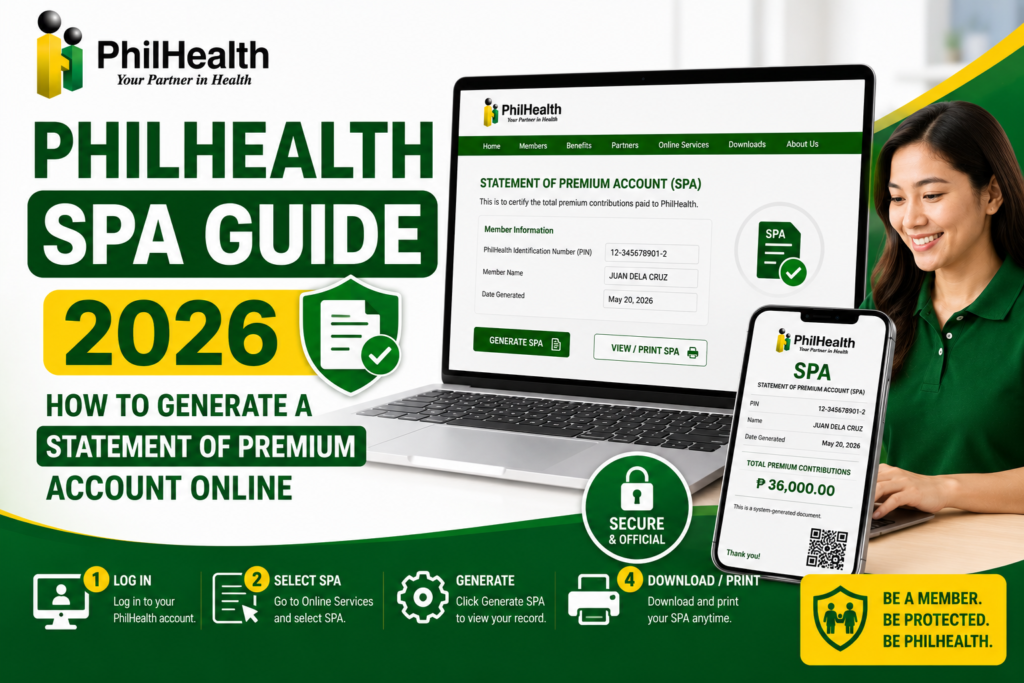
Step 1: Log Into the PhilHealth Member Portal
Go to the official PhilHealth website and click “Member Portal.” Enter your 12-digit PhilHealth PIN and password. If you have not registered for portal access, create an account first. See our Member Portal guide for detailed instructions.
Step 2: Navigate to the Payment or SPA Section
On your dashboard, look for “Payment,” “Contributions,” or “Generate SPA.” The exact label may vary depending on the current portal interface. Click to proceed.
Step 3: Select Your Coverage Period
Choose the period you want to pay for — a specific quarter (e.g., January-March 2026), a semi-annual period, or the full year. The system uses your membership category and declared income to compute the amount.
Step 4: Review and Generate the SPA
The portal displays your Statement of Premium Account with your name, PIN, coverage period, and the total amount due. Review all details carefully. Click “Generate SPA” or “Download.”
Step 5: Save, Print, or Note the Reference Number
Download the SPA as a PDF and save it to your device. You can also print a physical copy. Note the SPA reference number — you may need this when paying through certain channels. The SPA serves as your billing document until payment is made and posted.
How Employers Generate a PhilHealth SPA
Employers generate an SPA through the PhilHealth Employer Portal or the Electronic Premium Reporting System, if available. After logging in with the employer credentials, the employer selects the contribution period and the system calculates the total premium due for all enrolled employees — combining both the employer and employee shares. The employer SPA serves as the billing reference for batch remittance. Employers should generate an SPA for every remittance period and keep copies for audit and compliance purposes. For more on employer obligations, see our PhilHealth Employers guide.
How to Download or Print Your PhilHealth SPA
After generating your PhilHealth SPA, the portal provides options to download as PDF or print directly. Save the PDF to your computer or phone in a dedicated folder for PhilHealth documents. If printing, ensure the document is clear and all details are legible — especially the SPA reference number and the amount. Keep both a digital copy and a printed copy until your payment is posted and reflected in your contribution history. Having the SPA handy also helps if you need to pay over the counter, as the cashier may request the reference number.
How to Use an SPA When Paying PhilHealth Contributions
When paying through online channels like the Member Portal’s integrated payment gateway, GCash, or Maya, you may need to input the SPA reference number or simply enter the exact amount shown on your SPA. When paying over the counter at banks, Bayad Centers, or PhilHealth branches, present your printed SPA to the cashier. The SPA tells them exactly how much to collect and for which period. Using the SPA eliminates guesswork and reduces the risk of payment misapplication. Always keep the SPA and the payment receipt together until the contribution is posted.
Payment Channels That May Require a PhilHealth SPA
| Payment Channel | SPA Requirement |
|---|---|
| PhilHealth Member Portal (integrated payment) | SPA is generated within the portal before payment |
| GCash / Maya | SPA reference number may be required; exact amount from SPA needed |
| Over-the-Counter (Banks, Bayad Center) | Printed SPA recommended for accurate payment |
| PhilHealth Branch | SPA helpful but not always mandatory |
How to Verify Successful Payment After Using an SPA
After paying using your PhilHealth SPA, allow for posting time — 24-48 hours for online payments, 3-7 working days for over-the-counter payments. Log back into the Member Portal and go to “Contribution History.” The payment should appear with the correct amount and coverage period matching your SPA. You can also download your Member Data Record to see the updated contribution summary. If the payment does not appear after the expected posting window, contact the payment channel first, then PhilHealth with both your SPA and payment receipt. For detailed verification steps, see our check PhilHealth contributions guide.
Common PhilHealth SPA Generation Errors and Solutions
| Error | Likely Cause | Solution |
|---|---|---|
| “No Record Found” | Membership information incomplete or inactive | Update your membership records; contact PhilHealth |
| Wrong Amount on SPA | Declared income or membership category outdated | Update your information before generating a new SPA |
| SPA Generation Button Not Visible | Portal interface update or browser issue | Clear browser cache, try a different browser, or check during off-peak hours |
| Portal Not Loading | System maintenance or heavy traffic | Wait and try again later; check PhilHealth social media for maintenance announcements |
Troubleshooting Member Portal Login Issues
If you cannot log in to generate your PhilHealth SPA, first check that your PIN and password are correct. If you forgot your password, use the “Forgot Password” link. Check your email for the reset link — including spam folders. If your account is locked after multiple failed attempts, wait 30-60 minutes before retrying. Ensure you are using the official PhilHealth website and not a fake portal. If login problems persist, contact PhilHealth support or visit a PhilHealth branch.
Troubleshooting Missing Contribution Records on SPA
If your SPA does not reflect recent payments or shows gaps in coverage, the payments may not have been posted yet. Check your contribution history separately. If payments are truly missing, file an inquiry with PhilHealth using your payment receipts. Do not generate an SPA and pay again for periods you have already paid — this creates duplicate payments. Resolve missing records first, then generate a fresh SPA for only the unpaid periods.
What to Do If Your SPA Contains Incorrect Information
Step 1: Do Not Use the Incorrect SPA
Paying based on wrong information causes posting errors that are harder to fix later.
Step 2: Identify the Error
Is your name misspelled? Wrong membership category? Incorrect income bracket?
Step 3: Update Your Records
File a membership update through the Member Portal or at a PhilHealth branch with supporting documents.
Step 4: Generate a New SPA
Once corrections are processed, generate a fresh SPA reflecting accurate information before paying.
Security Tips for Protecting Your PhilHealth Account
- Never share your Member Portal password with anyone.
- Always log out after generating your SPA, especially on shared or public devices.
- Use a strong, unique password for your portal account.
- Verify the website URL before entering credentials — it should be the official PhilHealth domain.
- Keep your SPA documents secure — they contain your PhilHealth PIN and personal information.
SPA Feature Comparison Tables
Online SPA Generation vs Branch Request
| Method | Convenience | Processing Time | Best For |
|---|---|---|---|
| Online (Member Portal) | High — 24/7 access | Instant | Tech-savvy members, OFWs, busy professionals |
| PhilHealth Branch | Moderate — requires travel | Same day (during visit) | Members without internet, complex cases |
Expert Tips for Using Your PhilHealth SPA
- Generate your SPA a few days before your intended payment date to allow time for resolving any errors.
- Save both digital and printed copies of every SPA you generate.
- Always compare your SPA amount against the official PhilHealth Contribution Table to verify accuracy.
- Do not reuse old SPAs — generate a fresh one for each payment to ensure the reference number and coverage period are current.
- If you are paying annually, verify that the SPA covers all 12 months and the amount reflects the annual total correctly.
Frequently Asked Questions About PhilHealth SPA
Is the PhilHealth SPA the same as a payment receipt?
No. The SPA is a billing statement generated before payment. The payment receipt is issued after you pay. Both documents should be kept together — the SPA shows what you were billed, and the receipt proves you paid.
Can I pay PhilHealth without an SPA?
Yes, you can pay without an SPA by simply entering your PIN and the amount at payment centers. However, using an SPA ensures you pay the exact correct amount for the correct period, reducing the risk of errors.
How long is a generated SPA valid?
An SPA reflects the contribution amount for the coverage period selected. If contribution rates or your declared income change, a previously generated SPA may become outdated. It is best practice to generate a fresh SPA close to your payment date.
Can I generate an SPA for past contribution periods I missed?
Yes. The portal typically allows you to select past periods when generating an SPA. This is useful for paying missed contributions to reactivate your membership. Ensure you pay for all lapsed periods to restore active status.
What if the portal does not allow me to generate an SPA?
This could be due to portal maintenance, browser issues, or problems with your membership record. Clear your browser cache, try a different browser, or attempt during off-peak hours. If the problem persists, contact PhilHealth support or visit a branch.
Key Takeaways
- The PhilHealth SPA is a billing document that shows the exact amount you need to pay for a specific coverage period.
- Generate your SPA online through the Member Portal before making any contribution payment to ensure accuracy.
- The SPA is not a receipt — keep both the SPA and your payment receipt until the contribution is posted in your history.
- If your SPA shows incorrect information, update your records first before generating a new SPA and making payment.
- SPA features, portal interfaces, and contribution policies may change. Always verify through the official PhilHealth website at www.philhealth.gov.ph.
Image Recommendations for This Article
- Filename: philhealth-spa-statement-of-premium-account-sample.jpg
ALT: Sample PhilHealth Statement of Premium Account showing member details, coverage period, and amount due.
Title: PhilHealth SPA Sample
Caption: A sample Statement of Premium Account generated through the PhilHealth Member Portal. - Filename: generate-philhealth-spa-online-portal-steps.jpg
ALT: Screenshots showing the step-by-step process of generating a PhilHealth SPA through the Member Portal.
Title: Generate SPA Online Steps
Caption: Follow these steps on the Member Portal to generate your Statement of Premium Account. - Filename: philhealth-spa-vs-mdr-comparison.jpg
ALT: Side-by-side comparison of PhilHealth SPA billing document and Member Data Record.
Title: SPA vs MDR Comparison
Caption: The SPA is for billing; the MDR is for membership verification.
Disclaimer
philhealth-portal.ph is an independent informational website and is not affiliated with the Philippine Health Insurance Corporation (PhilHealth) or the Philippine Government. The Statement of Premium Account (SPA), online services, payment procedures, and membership policies may change over time. Always verify important information through official PhilHealth resources at www.philhealth.gov.ph.
Need More Help?
Explore our comprehensive PhilHealth Online Registration Guide for step-by-step instructions.
View Registration Guide →